HTTP messages
We have used browsers and curl to make HTTP requests. But what does the data exchanged between client and server actually look like? Requests and responses follow a format called an HTTP message. The client sends an HTTP request message, and the server returns the result in an HTTP response message.
flowchart LR
    client[Client] -->|Request message| server[Server]
    server -->|Response message| client

    classDef client fill:transparent,stroke:#8eb7c2,stroke-width:2px
    classDef server fill:transparent,stroke:#d0a476,stroke-width:2px
    class client client
    class server server
Think of sending a letter. The envelope carries the sender’s and recipient’s addresses and postal codes, while the letter inside carries the message. The recipient checks the envelope and then reads the contents. HTTP messages work in a similar way: they include the requested action, information needed to handle the request or response, and the data being delivered.
The structure of an HTTP message
In the HTTP/1.1 text format we use here, requests and responses have three main parts: a start line, headers, and an optional body.
-
Start line
The first line identifies the requested action and target path, or, in a response, the status of the result.
-
Headers
These provide additional information. Request headers can identify the target server and the client. Response headers can describe the data’s format or size.
-
Body
This carries the actual data, such as HTML, JSON, or an image. Some messages have no body.
Request messages
The client sends an HTTP request message to the server. Here is a simplified request for the home page of example.com:
GET / HTTP/1.1
Host: example.com
User-Agent: curl/8.7.1
-
Start line
GET / HTTP/1.1asks for the content at the/path.
-
Headers
Host: example.comidentifies the target server.User-Agent: curl/8.7.1identifies the client program.
-
Body
- This example only requests data, so it has no request body.
Requesting /
The / path usually refers to a website’s home page. A server may return an index.html file or generate the home page dynamically.
Response messages
The server returns an HTTP response message after handling the request. Here is a simplified example:
HTTP/1.1 200 OK
Content-Type: text/html

<!doctype html>
<html>
  <body>
    <h1>Example Domain</h1>
  </body>
</html>
-
Start line
HTTP/1.1 200 OKidentifies the HTTP version and the result.200 OKmeans the request succeeded.
-
Headers
Content-Type: text/htmlsays that the body contains HTML.- A
Content-Lengthheader, when present, gives the body’s size in bytes.
-
Body
<!doctype html>...</html>is the HTML returned by the server. A blank line separates the headers from the body.
Inspecting HTTP messages
Let’s inspect real messages with curl.
The earlier curl example.com command displayed only the response body. That is why we saw HTML but no start line or headers.
1. Viewing curl’s request
The -v option prints detailed information about the request and response. Run:
curl -v example.com
curl.exe -v example.com
Lines beginning with > show the request curl sent:
> GET / HTTP/1.1
> Host: example.com
> User-Agent: curl/8.7.1
The > markers are added by curl for display. They are not part of the actual HTTP message.
2. Viewing curl’s response
The -i option includes the response’s start line and headers before the body.
curl -i example.com
curl.exe -i example.com
You should see something like this, with the HTML body following a blank line:
HTTP/1.1 200 OK
Content-Type: text/html

<!doctype html>
<html>
  ...
</html>
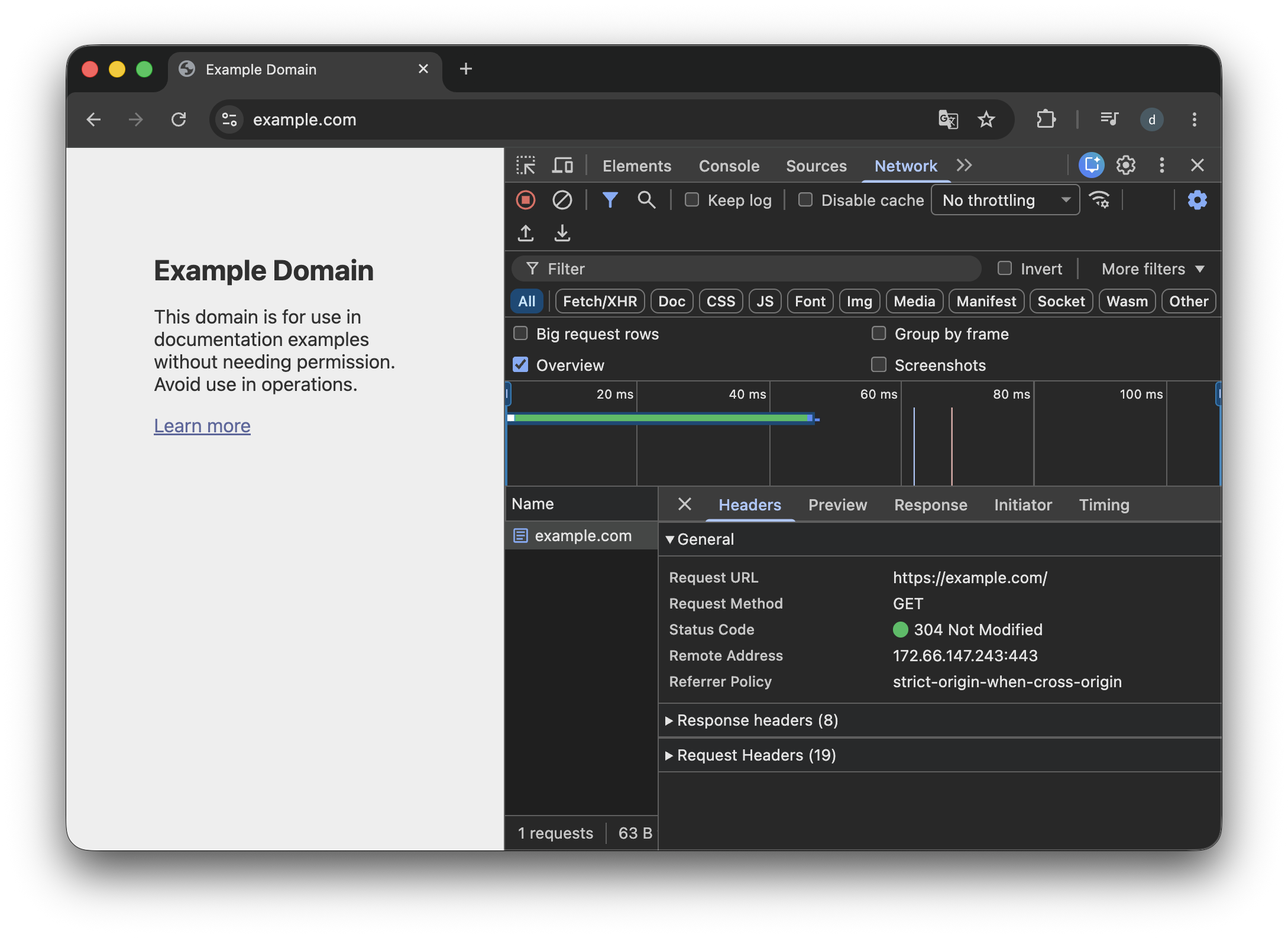
3. Inspecting browser requests and responses
You can also inspect the messages your browser exchanges. These steps use Chrome.
- Open
https://example.com. -
Right-click the page and select Inspect to open Developer Tools.
- On Windows and Linux, you can use
F12orCtrl+Shift+I. - On macOS, use
Command+Option+I.
- On Windows and Linux, you can use
-
Select the Network tab and reload the page.
- Select
example.comin the request list. Details appear below or beside it, depending on the window size. -
In the Headers tab, inspect:
- General: the request URL, method, and response status code.
- Request Headers: headers sent by the browser.
- Response Headers: headers returned by the server.
Select Response to see the response body—the HTML source we saw earlier.
Viewing the HTML source directly
In Chrome, right-click a page and select View page source to inspect the HTML the browser received.
Exercises
Decide whether each statement is True or False.
- HTTP requests and responses use a defined message format.
- HTTP headers contain only the data being delivered.
- Every HTTP request must have a body.
Answers and explanations
- True — Clients and servers exchange requests and responses using HTTP messages.
- False — Headers provide information such as format, size, and destination. The body carries the content.
- False — Some requests have no body.